![Group (1).png]](https://help.murf.ai/hs-fs/hubfs/Group%20(1).png?height=30&name=Group%20(1).png)
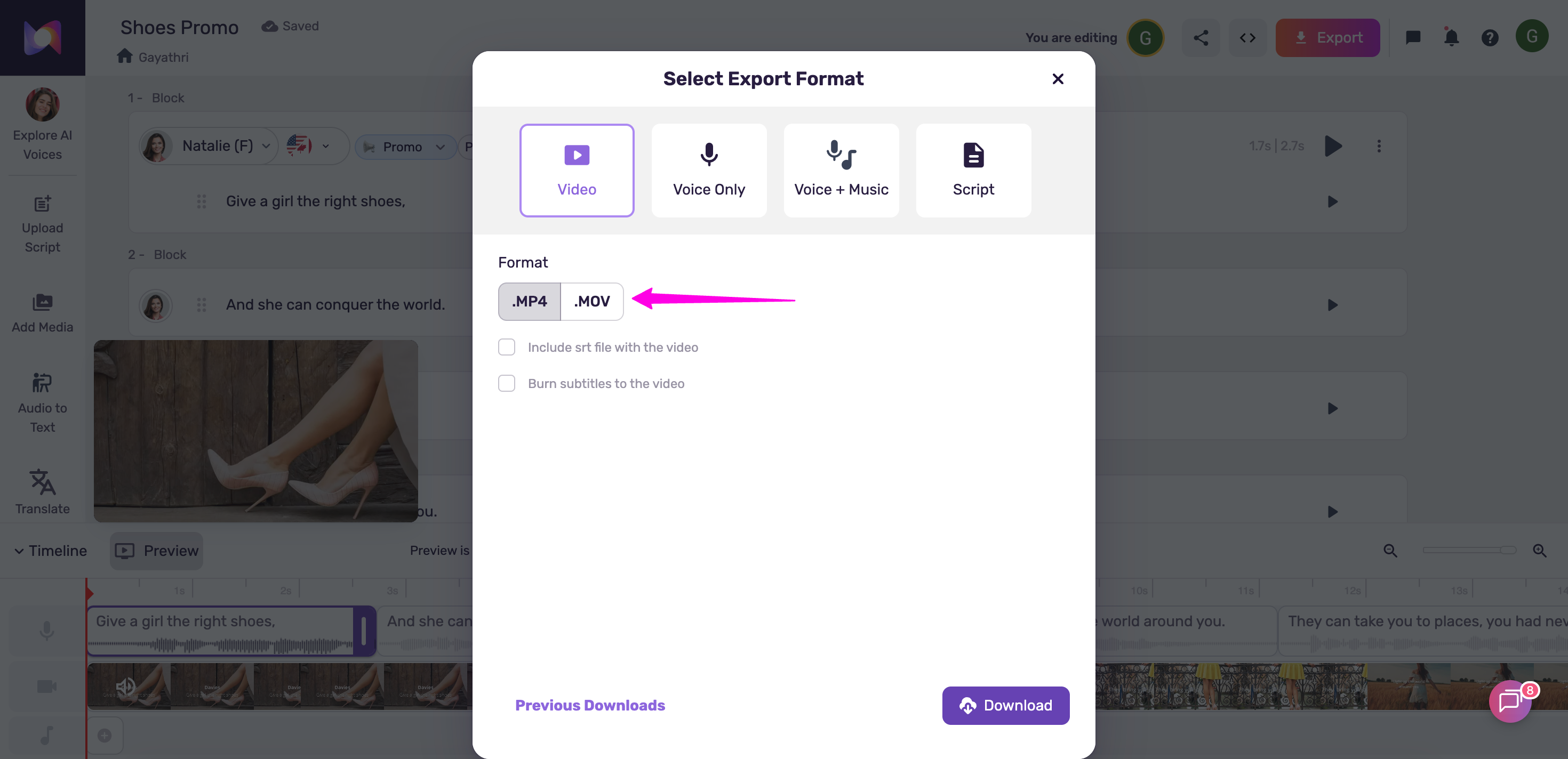
Supported Formats
- MP4
- MOV
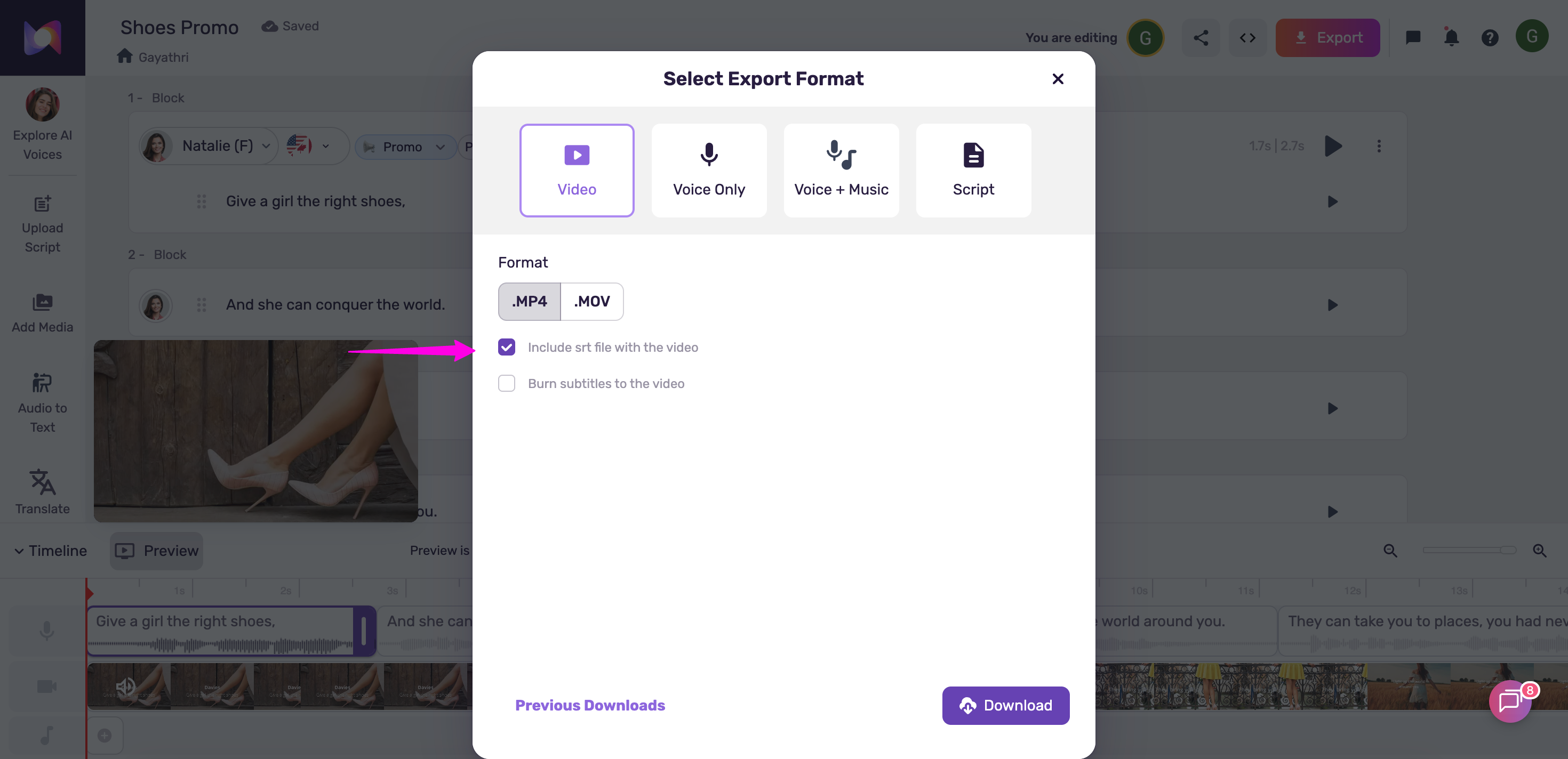
Include Captions in the Video
Murf Studio lets you easily add subtitles to your video. When you’re ready to download, simply select the “Include subtitles in the video” option before exporting.
Subtitles not appearing in your video?
No worries - they just need to be enabled in your media player. Simply head to the subtitles menu within your player and turn them on.
If you prefer, you can also download the project's script as an SRT or VTT file and simply place it in the same folder as the video file. This will enable the subtitles to appear automatically without any hassle.
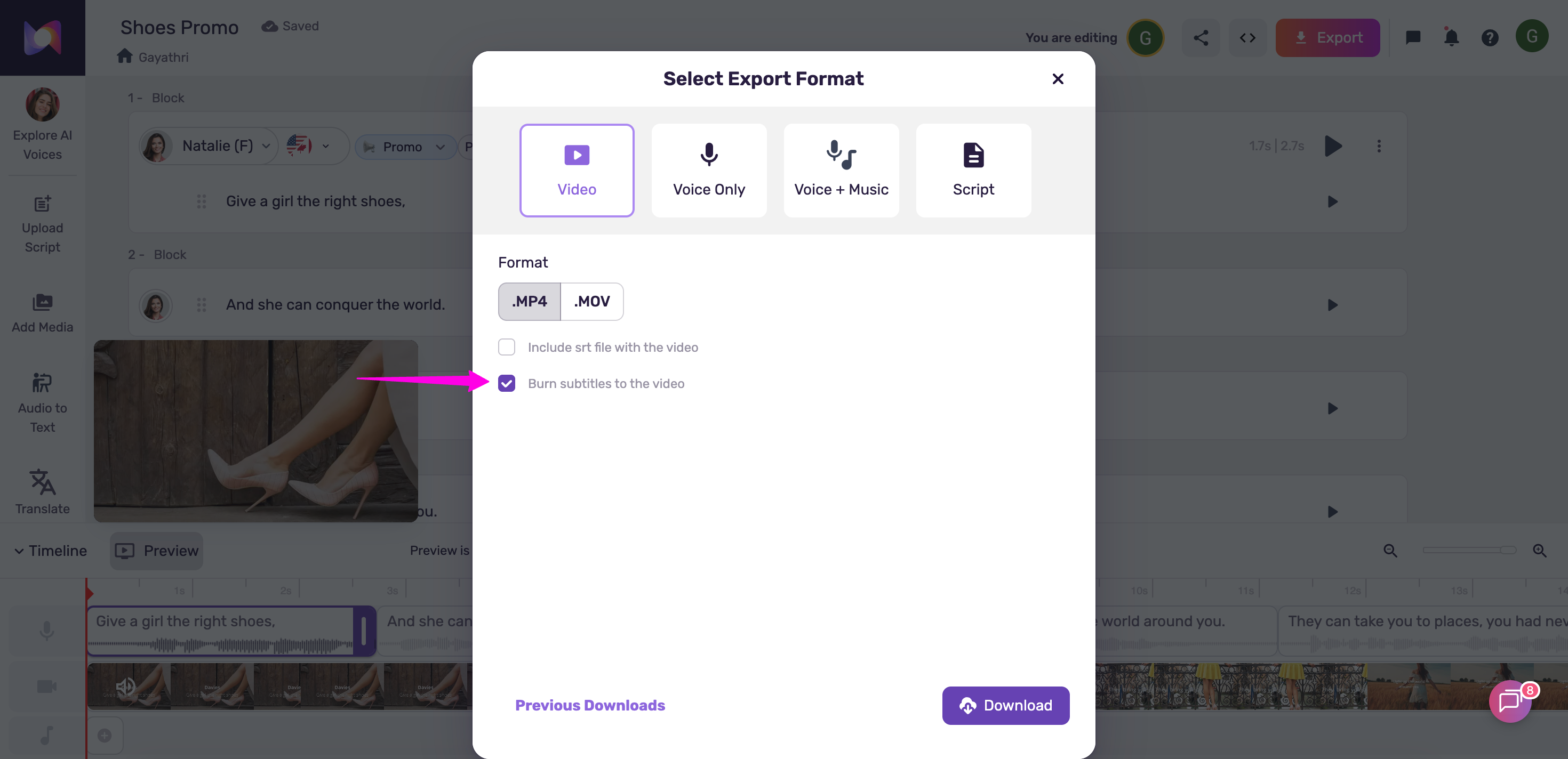
Burn Subtitles into Your Video
Murf Studio also lets you permanently burn subtitles into your video. When exporting your video, simply select the “Burn subtitles to the video” option. This ensures your subtitles or captions are always visible by default and embedded directly into the video file.
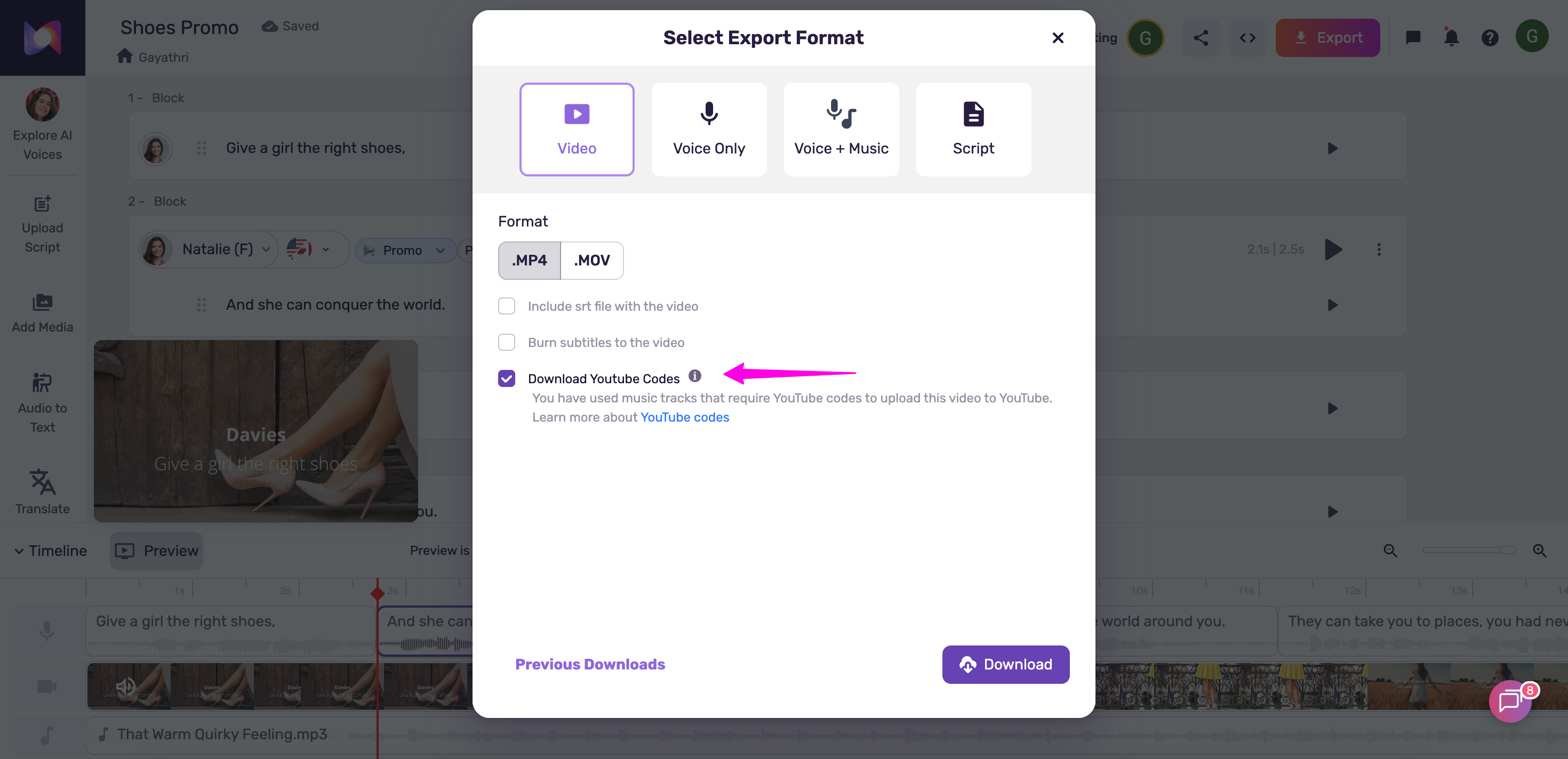
YouTube Code
For those using soundtracks from our Stock Library in their projects, we automatically generate a YouTube Code to prevent any potential copyright issues when uploading to YouTube. Learn more about this here.