![Group (1).png]](https://help.murf.ai/hs-fs/hubfs/Group%20(1).png?height=30&name=Group%20(1).png)
- Head to: https://murf.ai/integrations/powerpoint.
- Download and install the plugin. Here's a quick tutorial for your reference.
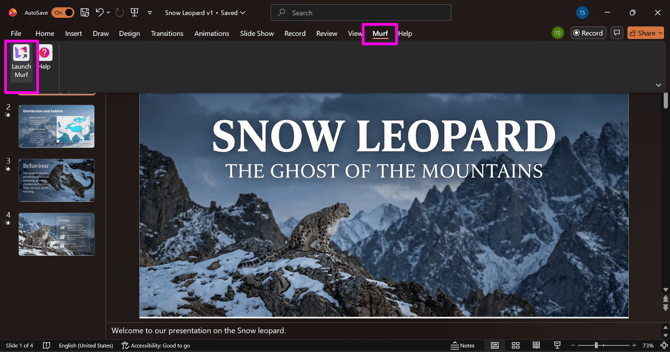
- Once the plugin is installed, open PowerPoint. You’ll see a Murf tab on the right—select it, then click Launch Murf.
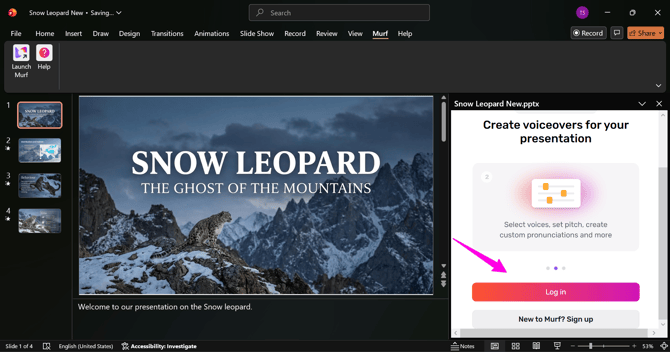
- Click “Log in,” then sign in to your account in the browser window that opens.
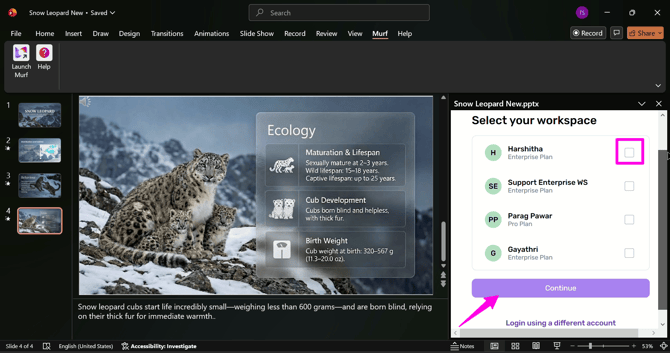
- Select the workspace from which you wish to create your project.
- The plugin now opens in a sidebar. You’ll be asked to choose one of two script import options: automatically pull the script from your presenter's notes, or enter the script manually for each slide.
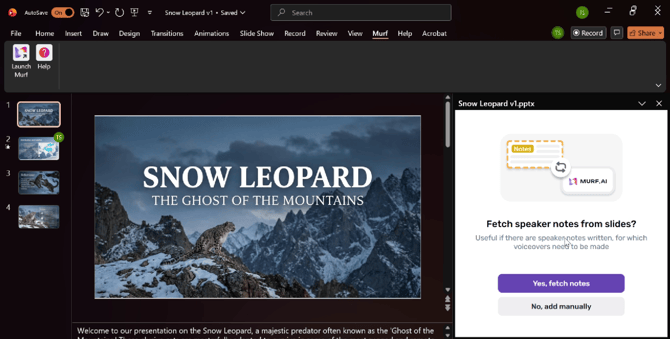
- Based on your selection, either the script editor will open for you to manually edit your script, or, if you choose to use your speaker notes for the voiceover, the script will be automatically imported into the text blocks.
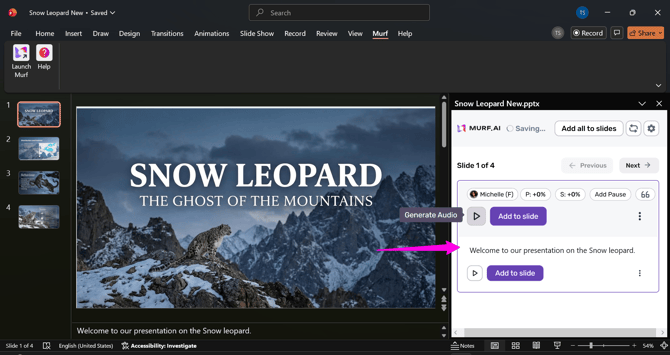
Here’s a step-by-step guide to launching and logging into the Murf PowerPoint plugin so you can create narration for your presentation.